

How to Set Up Apple CarPlay in Your Nissan: A Complete Step-by-Step Guide
Guide Navigation: Click to Scroll
If you’ve ever fumbled with your phone while trying to get directions or change a playlist on the road, you already know why Apple CarPlay exists. At Boucher Nissan of Waukesha, we get asked about Nissan CarPlay setup all the time — and honestly, it’s one of the easiest tech upgrades you can add to your drive. Whether you just picked up a new Nissan or you’re finally exploring features you haven’t touched yet, this guide walks you through everything you need to know.
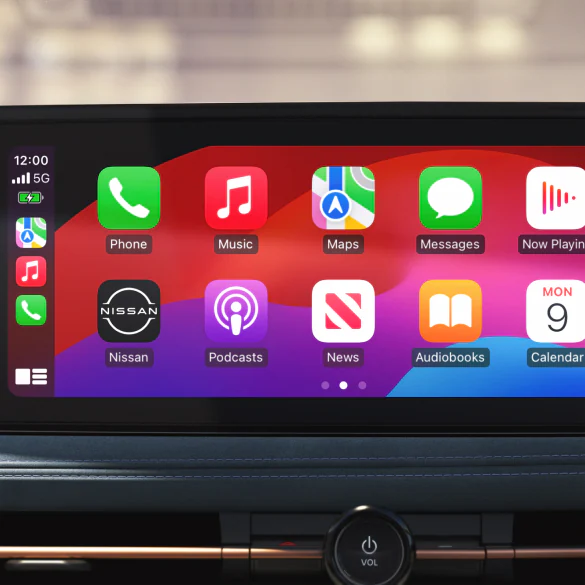
Key Takeaways
- Nissan Apple CarPlay is available on most new Nissan models through the NissanConnect system.
- Connect in minutes via Lightning/USB-C cable or wirelessly on supported models.
- Access Maps, Music, Messages, and Siri directly through your Nissan’s touchscreen.
- Troubleshooting usually involves checking cable quality or iPhone settings.
- CarPlay is standard across much of the modern Nissan lineup.
Does Nissan Have Apple CarPlay?
Short answer: yes — and it’s available across most of the current lineup. Nissan Apple CarPlay runs through the NissanConnect infotainment system and is standard or available on a wide range of trims. Whether you’re driving a commuter sedan or a family SUV, there’s a good chance your Nissan already has it built in.
How Do You Connect Your iPhone to a Nissan?
Knowing how to connect an iPhone to a Nissan is straightforward and usually takes under five minutes. All you need is a compatible iPhone (iPhone 5 or later), an Apple-certified cable, and a Nissan with NissanConnect infotainment. On select newer models, you can even connect wirelessly.
Step-by-Step: Wired Nissan CarPlay Setup
- Start your Nissan and let the NissanConnect system fully boot up.
- Plug your iPhone into the USB-A port (or USB-C) using an Apple-certified cable.
- On your iPhone, tap “Trust” when the prompt appears.
- On the NissanConnect screen, select Apple CarPlay.
- The CarPlay home screen will load with your apps ready to go.
Quick tip: If nothing happens, ensure CarPlay is enabled under Settings → General → CarPlay on your iPhone.
Step-by-Step: Nissan Apple CarPlay Wireless Setup
Nissan Apple CarPlay wireless connectivity is available on select newer models, making the whole experience even more seamless — no cable required.
- Make sure Bluetooth and Wi-Fi are both enabled on your iPhone.
- Start your vehicle and open the NissanConnect settings menu.
- Select “Apple CarPlay” from the options.
- Pair your phone via Bluetooth when prompted.
- Once paired, wireless CarPlay will connect automatically on future starts.
Which Nissan Vehicles Come With Apple CarPlay?
Most current Nissan models include Nissan CarPlay as a standard or available feature. Here’s a look at popular models that support it:
- Nissan Altima CarPlay — available across multiple trims
- Apple CarPlay Nissan Rogue — a fan favorite for connected driving
- Nissan Sentra, Murano, & Pathfinder
- Nissan Frontier & Kicks
- Nissan Ariya (EV) — supports wireless CarPlay
Not sure if your car has it? Swing by Boucher Nissan of Waukesha and we’ll check for you!
What Are the Benefits of Apple CarPlay in Your Nissan?
Safer Driving: Siri handles messages and calls so your hands stay on the wheel.
Seamless Navigation: Apple and Google Maps run directly on the screen with real-time traffic.
Your Music, Your Way: Spotify, Apple Music, and Podcasts are fully integrated.
Zero Learning Curve: The interface looks exactly like your iPhone.
Troubleshooting Common Apple CarPlay Issues
| Issue | Likely Cause | Fix |
|---|---|---|
| Won’t connect | Cable issue | Try Apple-certified cable |
| Not recognized | Trust not accepted | Tap ‘Trust’ on phone |
| Audio cuts out | Loose connection | Reseat cable |
| Wireless failure | Wi-Fi/BT off | Enable both and re-pair |
Frequently Asked Questions
Does Nissan have Apple CarPlay?
Yes — most Nissan models include Nissan Apple CarPlay through the NissanConnect system. Check your owner’s manual or ask our team at Boucher Nissan of Waukesha to confirm your specific trim.
Does the Nissan Altima have CarPlay?
Yes. Nissan’s Altima CarPlay is available across multiple trims, making it one of the easiest ways to enjoy seamless iPhone connectivity in a midsize sedan.
Does the Nissan Rogue have Apple CarPlay?
Absolutely. Apple CarPlay and Nissan Rogue compatibility come standard on most trims, making it a top choice for connected drivers and families alike.
How do I connect my iPhone to my Nissan?
Knowing how to connect an iPhone to a Nissan is simple: plug in using an Apple-certified cable, tap “Trust” on your iPhone, and select CarPlay on your NissanConnect screen. For wireless, enable Bluetooth and Wi-Fi, then pair through the settings menu.
Does Nissan have wireless Apple CarPlay?
Yes, select models support Nissan Apple CarPlay wireless connectivity, including the Nissan Ariya. Once paired, your iPhone connects automatically every time you start the vehicle.
Do I need a special cable for Apple CarPlay in my Nissan?
You’ll need an Apple-certified Lightning or USB-C cable — avoid cheap third-party cables, as they’re the most common cause of connection failures.
Can I use Google Maps through CarPlay in my Nissan?
Yes. Google Maps is fully compatible with Nissan CarPlay, so you can use it just like Apple Maps right on your NissanConnect screen.
Can Apple CarPlay be added to an older Nissan?
In some cases, yes — aftermarket head units with CarPlay support can be installed. Talk to the service team at Boucher Nissan of Waukesha to see what’s possible for your specific model and year.
Ready to Experience Nissan Technology?
Visit Boucher Nissan of Waukesha today for a hands-on demonstration or to browse our CarPlay-equipped inventory.
0 comment(s) so far on How to Set Up Apple CarPlay in Your Nissan: A Complete Step-by-Step Guide